Loading Into Tab Outlets
- Updated:
How to configure your extension to appear as a tab in a platform's tabbed outlet.
Tab outlets allow your extension to render as a tab within a tabbed interface on the platform — for example, as a tab on an Account Details or Transaction Details page. This guide covers how to configure your extension to appear in one of these outlets using the Tecton CLI.
Using the CLI
Extension developers use the Tecton CLI to configure their extension to appear in a tabbed outlet.
Run q2 tecton, select your extension, choose Outlet Configurations, then UUX Tabbed Outlet Config:
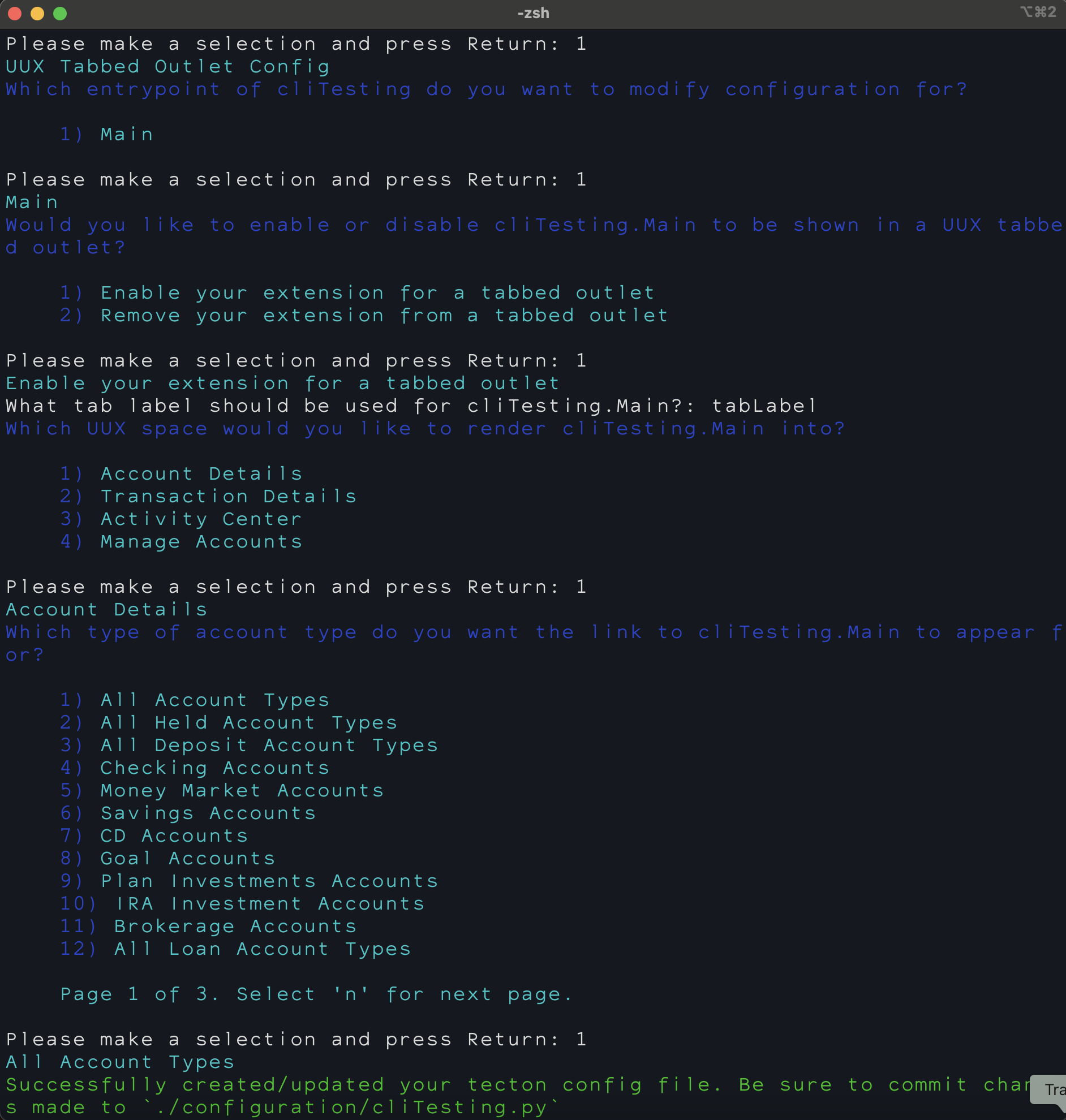
The CLI walks through:
- Entrypoint selection — Choose which module of your extension to configure
- Enable or disable — Enable your extension for a tabbed outlet or remove it from one
- Tab label — Set the label that will appear on the tab
- UUX space — Choose where the tab should appear:
- Account Details
- Transaction Details
- Activity Center
- Manage Accounts
- Account/Transaction type — Choose which context types the tab should appear for. Select "All Account Types" to show the tab for all account types, or choose a specific type like "Checking Accounts" to limit visibility.
The CLI updates your extension's configuration file at configuration/{ExtensionName}.py.
Context Filtering
Tab outlets support context filtering to control which tabs appear based on the current account or transaction type. For example, a tab configured with Account::Checking will only appear on Checking account detail pages.
Context is set automatically by the CLI based on your UUX space and type selections. For more details on context types and the hierarchy, see UUX Content Controls.
Accessing Context in Your Extension
When your extension is rendered inside a tab outlet, you can access the context information that was passed to the outlet.
Client-Side Rendered (CSR):
const tecton = await connect();
const { id, value } = tecton.incomingContext;
// id = 'accountId', value = '12345'
Server-Side Rendered (SSR):
async def default(self):
    context_id = self.incoming_context.get('id')      # e.g., 'accountId'
    context_value = self.incoming_context.get('value')  # e.g., '12345'