Tab Outlets
- Updated:
How to create and configure tabbed outlets for rendering extensions as tabs.
Tab outlets render one or more extensions as tabs within a tabbed interface. Each extension contributes a tab, and the platform handles tab switching, loading states, and layout. Tab outlets use the <tecton-tabbed-outlet> element.
How Tab Outlets Work
When a <tecton-tabbed-outlet> is placed in a platform's template, it:
- Sends a resolution request to the platform with its outlet path, context, and context value
- The platform resolves which extensions should appear as tabs based on the outlet configuration and context matching
- For each resolved tab, a
<tecton-tab-pane>is created containing an iframe that loads the extension - The tab container handles user interaction (switching tabs, settled states)
Configuring an Extension into a Tab Outlet
Extension developers use the Tecton CLI to configure their extension to appear in a tabbed outlet.
Run q2 tecton, select your extension, choose Outlet Configurations, then UUX Tabbed Outlet Config:
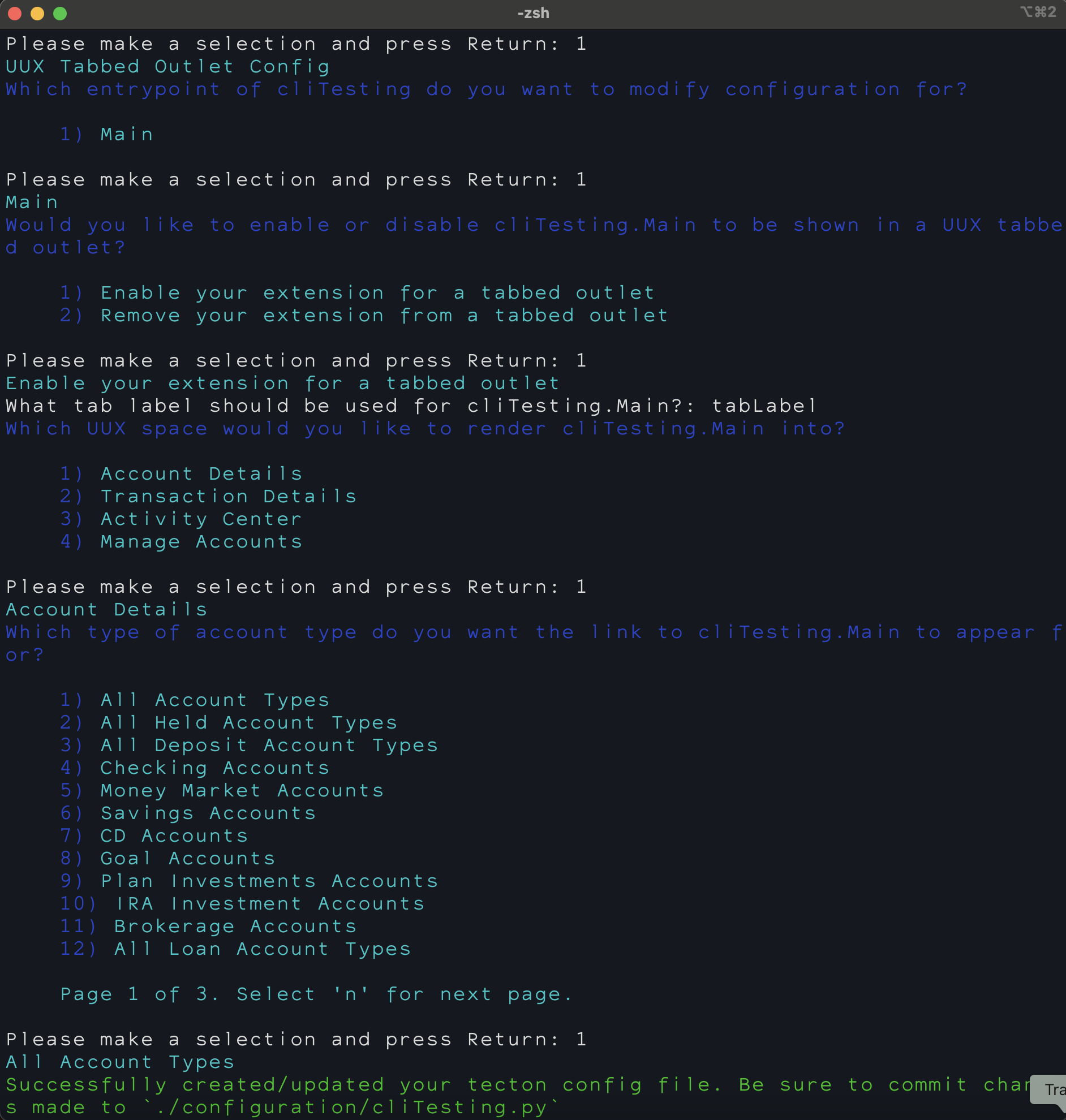
The CLI walks through:
- Entrypoint selection — Choose which module of your extension to configure
- Enable or disable — Enable your extension for a tabbed outlet or remove it from one
- Tab label — Set the label that will appear on the tab
- UUX space — Choose where the tab should appear:
- Account Details
- Transaction Details
- Activity Center
- Manage Accounts
- Account/Transaction type — Choose which context types the tab should appear for (paginated list). Select "All Account Types" to show the tab for all account types, or choose a specific type like "Checking Accounts" to limit visibility.
The CLI updates your extension's configuration file at configuration/{ExtensionName}.py.
Context Filtering for Tabs
Tab outlets support context filtering to control which tabs appear based on the current account or transaction type. For example, a tab configured with Account::Checking will only appear on Checking account detail pages.
Context is set automatically by the CLI based on your UUX space and type selections. For more details on context types and the hierarchy, see UUX Content Controls.
Accessing Context in Your Extension
When your extension is rendered inside a tab outlet, you can access the context information that was passed to the outlet.
Client Side Rendered (CSR):
const tecton = await connect();
const { id, value } = tecton.incomingContext;
// id = 'accountId', value = '12345'
Server Side Rendered (SSR):
async def default(self):
    context_id = self.incoming_context.get('id')      # e.g., 'accountId'
    context_value = self.incoming_context.get('value')  # e.g., '12345'
Creating a Tab Outlet (Platform Implementers)
Platform implementers add tab outlets to their templates using the <tecton-tabbed-outlet> element. The element requires a name attribute that matches the outlet path used in extension configurations, and a context attribute that defines what type of data the outlet is contextual to.
<tecton-tabbed-outlet
    name="AccountDetails.main.tabs"
    context="Account::Q2Account"
    contextValue={{accountId}}
    resolvedType={{accountType}}
    min-height="450px"
>
    <q2-tab-container name="account-details-tabs" value={{currentTab}}>
        <!-- Platform-provided tabs can be placed here alongside extension tabs -->
        <tecton-tab-pane value="transactions" label="Transactions" name="account-details-tabs">
            <!-- Platform-owned tab content -->
        </tecton-tab-pane>
    </q2-tab-container>
</tecton-tabbed-outlet>
Attributes
| Attribute | Type | Description |
|---|---|---|
name |
string | The outlet path identifier. Extensions reference this to register tabs. |
context |
string | The context type for this outlet (e.g., Account::Q2Account, Transaction::Q2Transaction, None). |
contextValue |
string | The current context value (e.g., the account ID). |
resolvedType |
string | The resolved subtype of the context (e.g., Checking, Savings). Used for context filtering. |
additionalContext |
string | Additional context data for granular filtering (e.g., product ID). |
contextId |
string | The context identifier parameter name (e.g., accountId). |
outletSelector |
string | Identifies the outlet for theme CSS targeting. See Outlet Selectors. |
Tab Selection Events
The <q2-tab-container> emits a tctChange event whenever the selected tab changes. The event payload is { value: string }, where value is the value attribute of the newly selected <tecton-tab-pane>. Use this event to react to tab changes — for example, to update a URL fragment or persist the user's last-viewed tab.
<tecton-tabbed-outlet name="AccountDetails.main.tabs" ...>
    <q2-tab-container name="account-details-tabs">
        <tecton-tab-pane value="transactions" label="Transactions" name="account-details-tabs">
            <!-- ... -->
        </tecton-tab-pane>
    </q2-tab-container>
</tecton-tabbed-outlet>

<script>
    document.querySelector('q2-tab-container')
        .addEventListener('tctChange', e => {
            console.log('Selected tab:', e.detail.value);
        });
</script>
Setting value on Platform-Authored Tab Panes
For tab panes you author directly inside a <q2-tab-container> in your template, set the value attribute to a stable identifier of your choosing. This identifier is what tctChange will emit when the tab is selected, and it's also what <q2-tab-container value="..."> uses to mark a tab as initially selected.
<q2-tab-container name="account-details-tabs" value="transactions">
    <tecton-tab-pane value="transactions" label="Transactions" name="account-details-tabs">
        <!-- emits { value: 'transactions' } when selected -->
    </tecton-tab-pane>
    <tecton-tab-pane value="statements" label="Statements" name="account-details-tabs">
        <!-- emits { value: 'statements' } when selected -->
    </tecton-tab-pane>
</q2-tab-container>
Choose values that are stable identifiers — not display copy — so that label changes don't break listeners.
value for Dynamically Inserted Extension Tabs
When the platform resolves an extension into a tab outlet, the dynamically inserted <tecton-tab-pane> automatically receives a stable value derived from its moduleId. Specifically, the value is featureName.moduleName.
For example, if an extension named MyFeature contributes a module called Main to the AccountDetails.main.tabs outlet, the resolved moduleId is AccountDetails.main.tabs.MyFeature.Main and the inserted tab pane's value will be MyFeature.Main. Selecting that tab emits:
{ value: 'MyFeature.Main' }This identifier is independent of the tab's display label, so editing tabLabel in your extension's configuration won't break consumers listening for the tab's tctChange value.
How Extensions Map to Outlets
The mapping between an extension's CLI configuration and the platform's outlet element is handled through the Tecton configuration system. When the CLI configures a tabbed outlet, it writes an entry like:
ACCOUNT_DETAILS_TABS = [
    {
        'tabLabel': 'My Tab',
        'modules': [{'moduleName': 'Main'}]
    }
]
This maps to the AccountDetails.main.tabs outlet in the platform. The platform reads these configurations and resolves which tabs should appear for the current context.