Your institution is designing and developing an entry point that will reside on the landing page of Q2's digital banking platform. Q2 has over 400 financial institutions on our platform, all with very distinct branding and theming requirements. This guide is intended to assist your institution in meeting FI expectations on how your content will integrate with the rest of the content on the users' digital banking landing page. The ability to bring together content from a wide variety of providers and make it appear as a cohesive system is only possible due to the Q2 Software Development Kit (SDK) and Tecton.
General Guidelines
- The composable dashboard content block is a container that stacks in a masonry layout on the Composable Dashboard.
- The content on the dashboard will serve as an entry point to a more robust experience. Do not embed a complex workflow within the limited space on the dashboard.
- Use the content block to deliver a very focused snippet of beneficial information for the user such as calling attention to an insight into their finances that they may not recognize on their own, due dates that are approaching, recent history, etc.
- The content block is responsible for "state management" within a single content block. For example, if there is an initial state such as a call to enroll, the content block needs to incorporate that state and accommodate the enrollment process without modifying the height of the content block when the user transitions to a post-enrollment state. This will avoid shifting heights that could affect the placement of other content blocks.
- Consider the transition from the entry point on the dashboard into the more robust workflow to provide a cohesive experience.
Design Strategy
Designing Content Blocks inside Composable Dashboard/Dynamic Personalization
Content blocks within a Composable Dashboard should fall within one or more of the three guiding principles and help users answer questions that otherwise would need to be researched.
- Operational: e.g., "Where is my money?" or "Do we have enough for payroll?"
- Analytical: e.g., "Can I afford to go out tonight?" or "Can we cover payroll for the next 3 months?"
- Strategic: e.g., "Am I on track to retire in 10 years?" or "When is the right time to expand my business?"
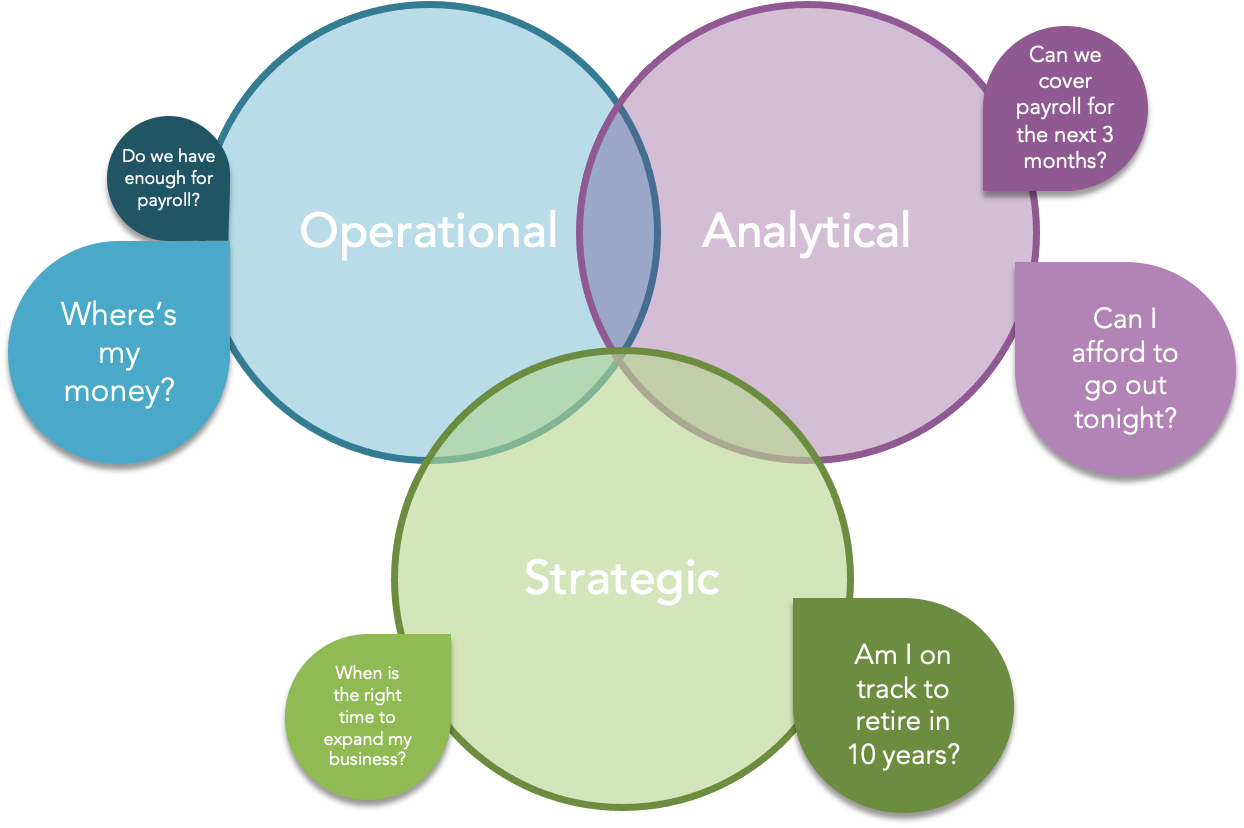
Blocks should be:
- Informative - Designed to highlight relevant data points that will enable the user to make informed financial decisions.
- Timely - Only present timely information or opportunities. If there is no relevant, timely information, the content block should incorporate an appropriate "empty state".
- Actionable - Prompt, or nudge, the user to take the next best action to improve their financial life.
- Appropriately Sized - As small as possible for the message and information that you're trying to convey.
- Focused - Be limited to the highest priority information. The user will have the opportunity to click through to dig into additional detail; here, keep it to information that is consumable at a glance.
- Cohesive - Leverage the Q2 Web components available through Tecton. This will ensure the content block looks like it belongs and fits with the FI's branding.
- User-centered — Focus on what will be most impactful to the user's finances.
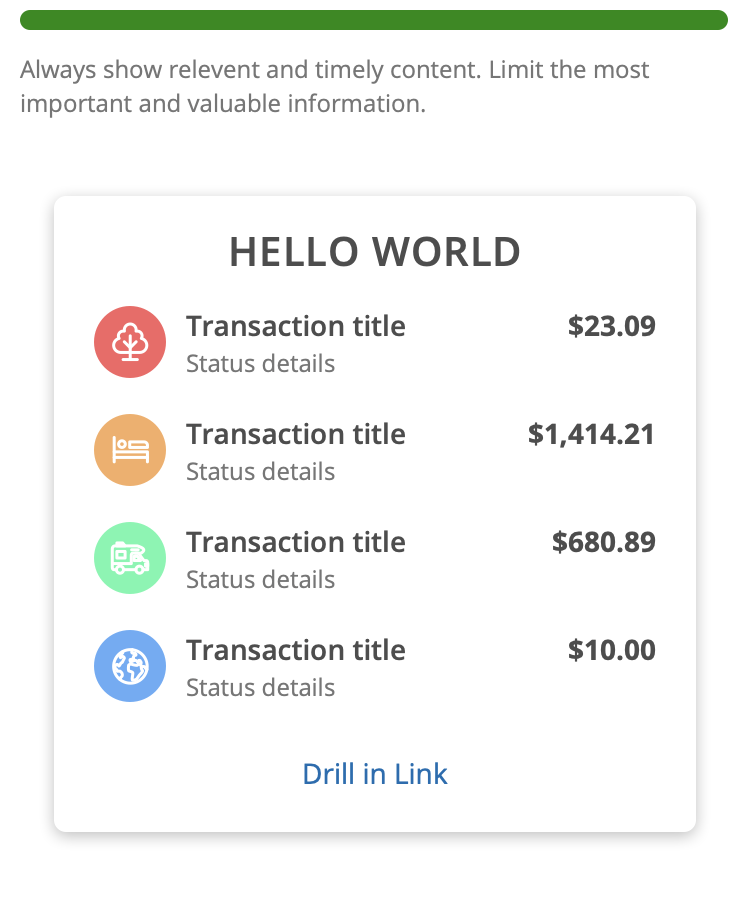
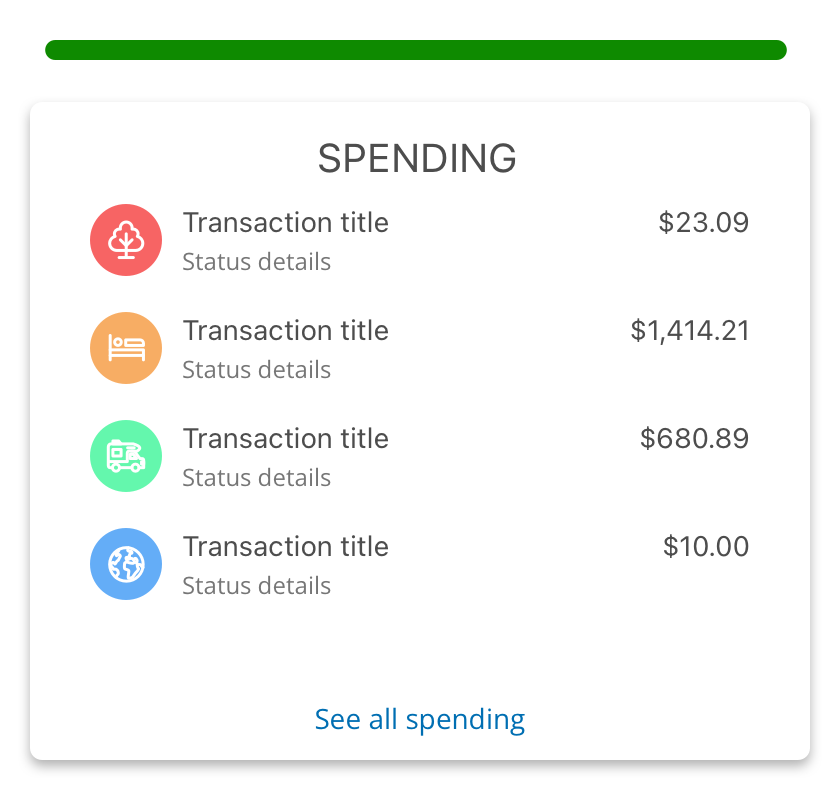
Last 7 days of transfers (pending or processed), maximum 4 transactions with 2 CTAs. "View all transfers" & "New transfer"
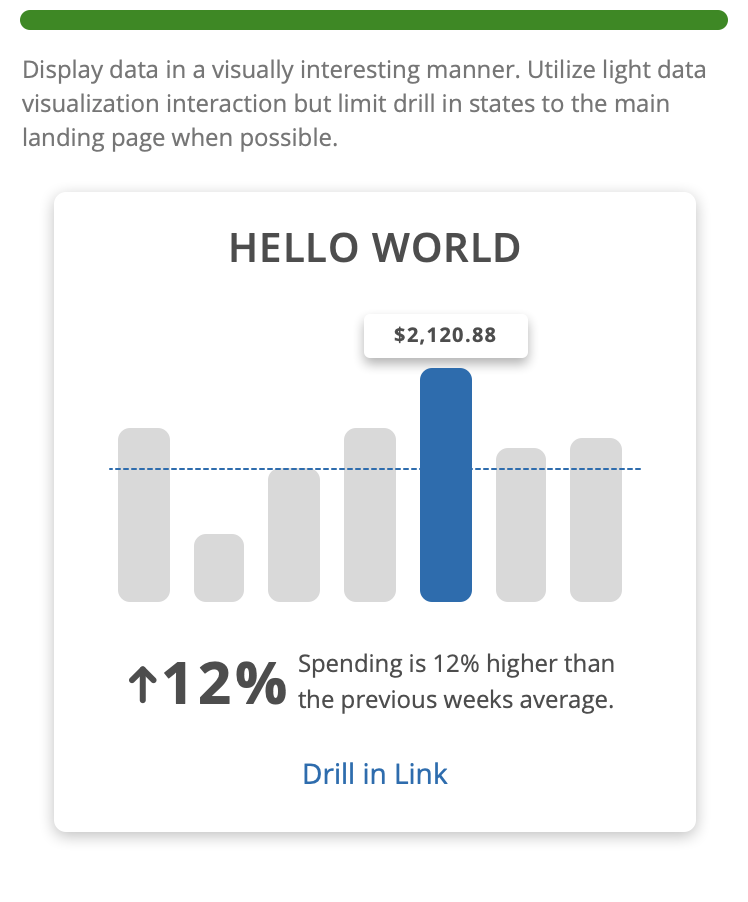
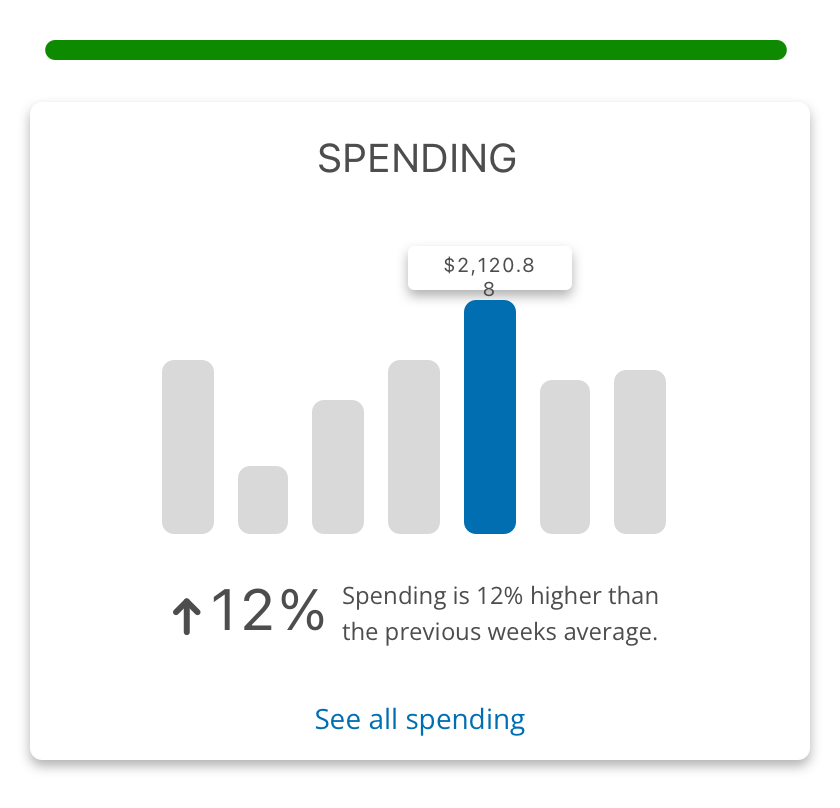
Historical data consolidated into a small bar chart paired with a trend line to indicate spending under/over the norm.
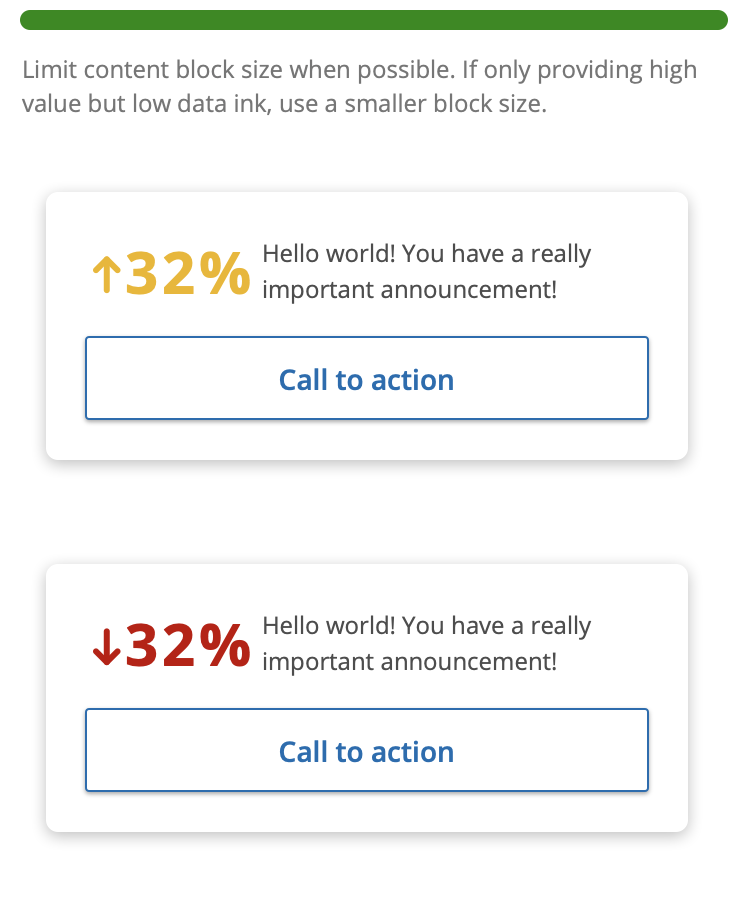
Updated trend indicator with a pertinent call to action.
Blocks should NOT be:
- Empty - No content loaded
- Alternatively, if no content is returned or the user has not enrolled, this block could be 1. Not loaded 2. Display an enrollment, onboarding state, or "empty state".
- Old/dated historical data - e.g., past 30, 60, or 90 days depending on the relevance of the information.
- Alternatively, transition to a blank state call to action to encourage the user to interact with the feature/service again.
- Workflows (steps)
- Alternatively, provide an entry point into the workflow. The workflow should open in a new page or overpanel.
- Forms (form fields and submission)
- Alternatively, provide an entry point into the workflow. The workflow should open in a new page or overpanel.
- A full experience inside the content block
- Never place forms or entire lists of transactions with pagination inside a content block. Full lists should be designed and developed within a standard UUX page or external SSO.
- Alternatively, define and deliver useful and timely content to the user with an entry point
- Full navigation replacement
- Never recreate full navigation or mega menus.
- Alternatively, the "Quick Links" content block can be used to surface contextually relevant links.
- Complicated data visualization/charts
- Alternatively, create a small graph or chart utilizing a Tecton Graph or Chart component and only allow one (1) level of internal drill-in state. Once the user drills in one level, the second click should take them into a deep link of the full experience where they can further explore more information in a larger screen view.
- SSO/iFrames into other platforms
- While Tecton utilizes the iFrame method of isolating code, we do not allow dashboard content blocks to iFrame SSO or isolated codebases from other platforms. The quality of the UI presentation must be maintained in order to provide a clean and consistent interface. Theming will be applied impacting colors, fonts, and button styles.
- Alternatively, develop an SDK block calling on the services API to present relevant content while utilizing Tecton to define the UI presentation layer. See the technical guidelines.
- Negative verbiage/messaging - Content messaging should not promote one service over another. Never disparage other services.
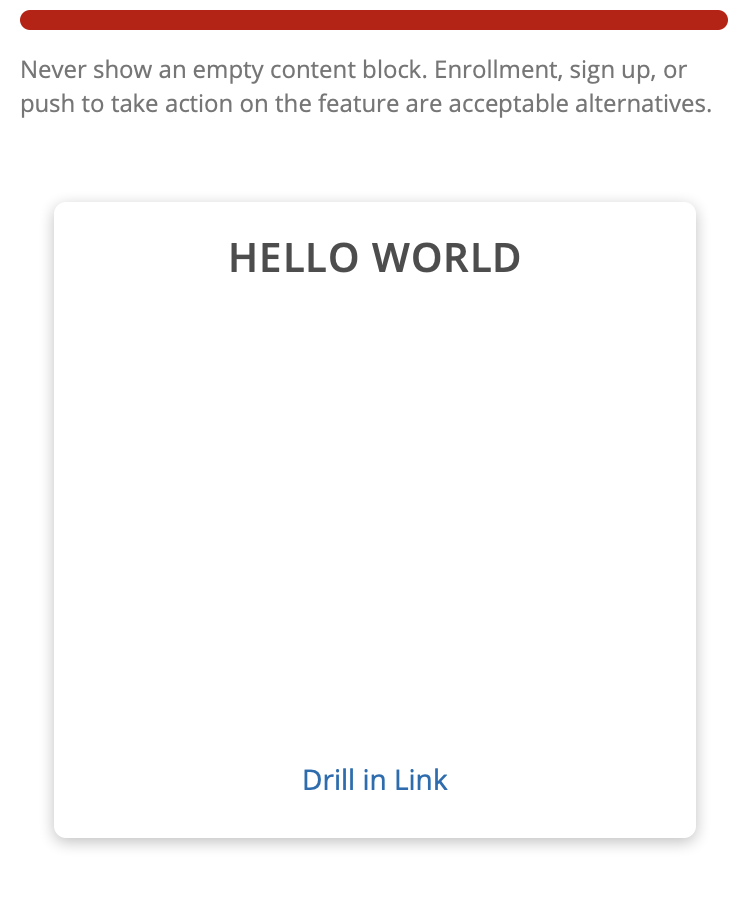
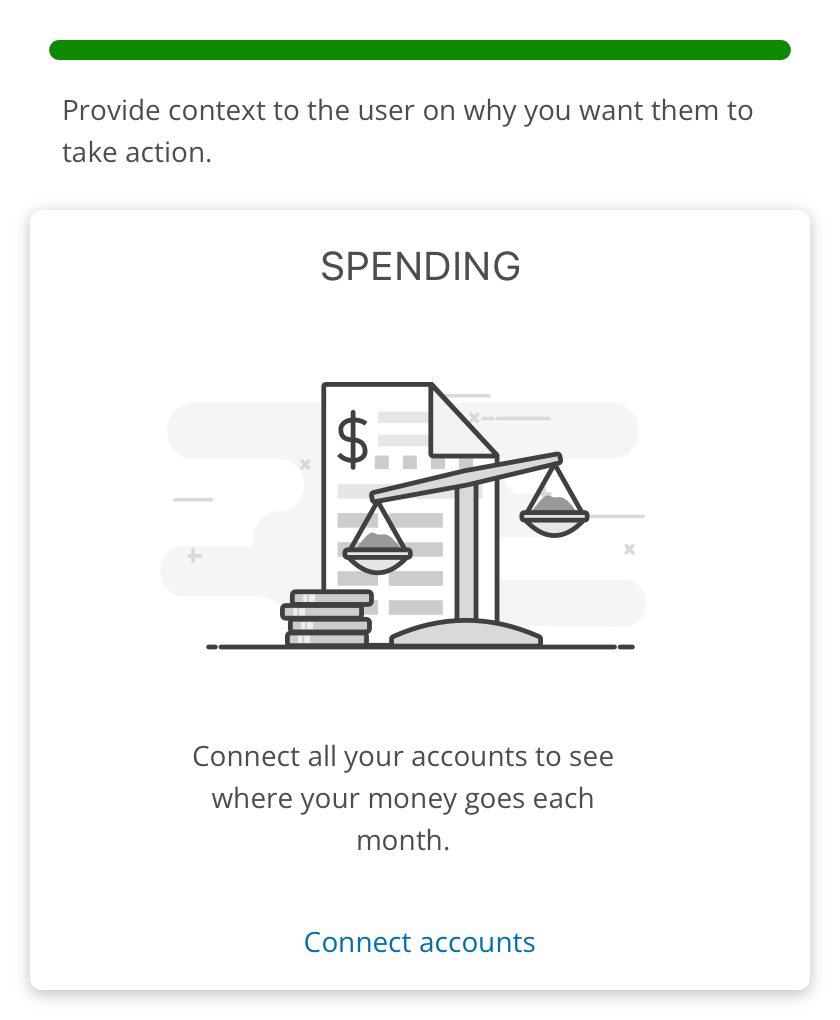
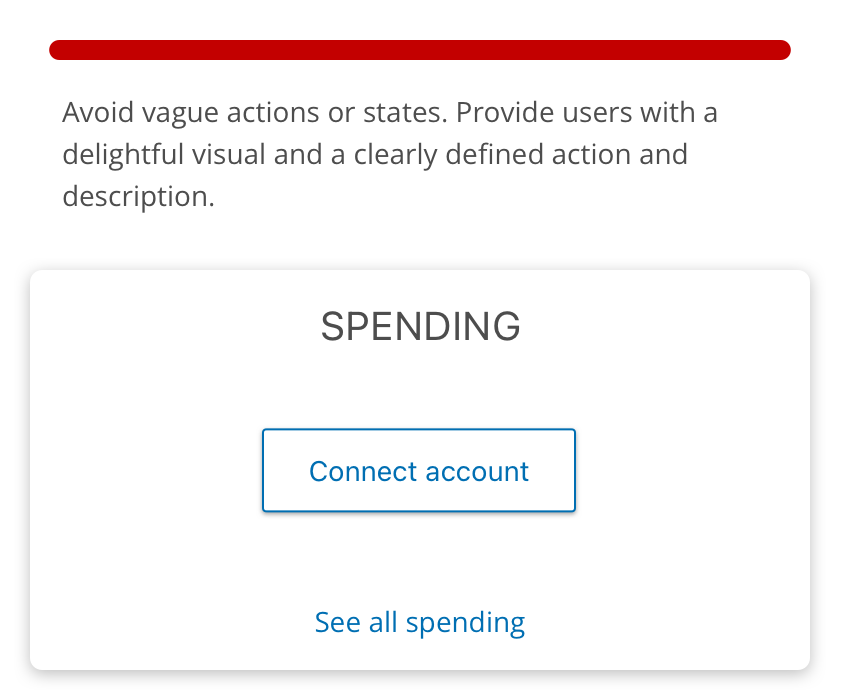
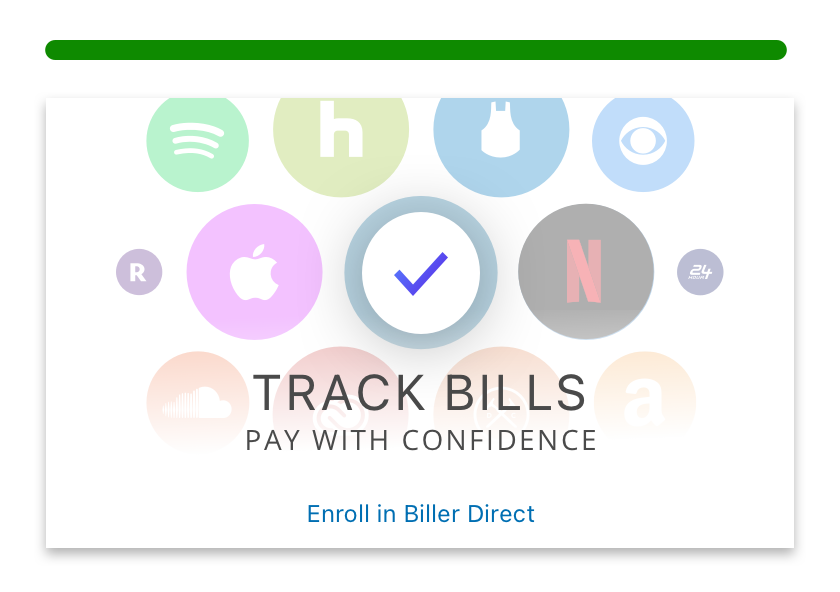
Empty states should render an illustration and be paired with a call to action or message stating the user is in a good spot. Empty states can be a good thing if the goal of the feature is to clear a list. Utilize this to celebrate.
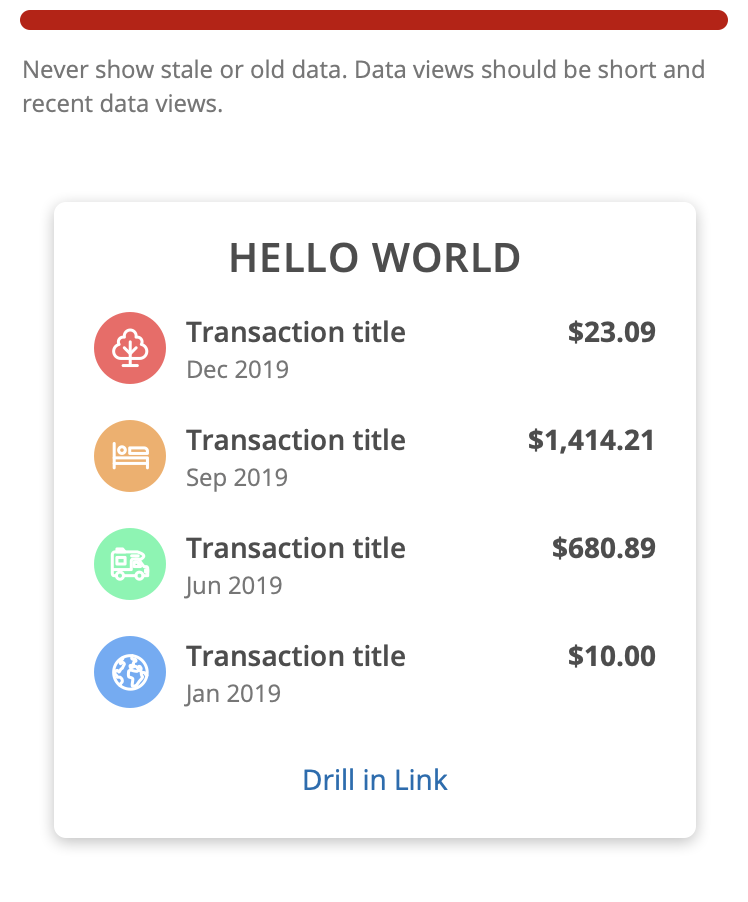
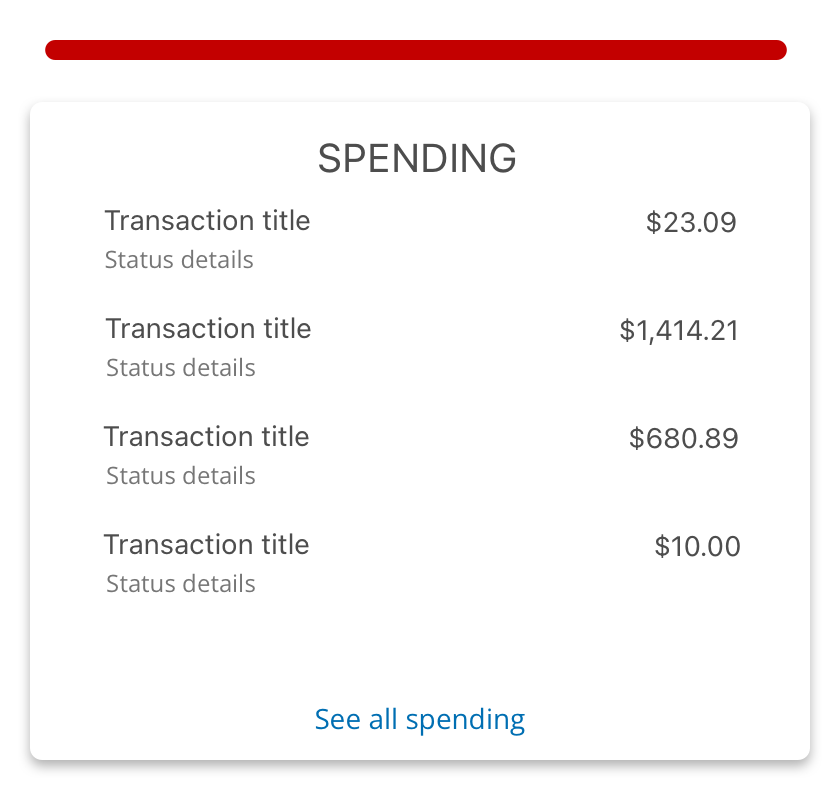
Notice the dated transactions. Just because they are the most recent, does not mean they are relevant or timely. Replace the older data with a blank state letting the user know they don't have any recent transactions.
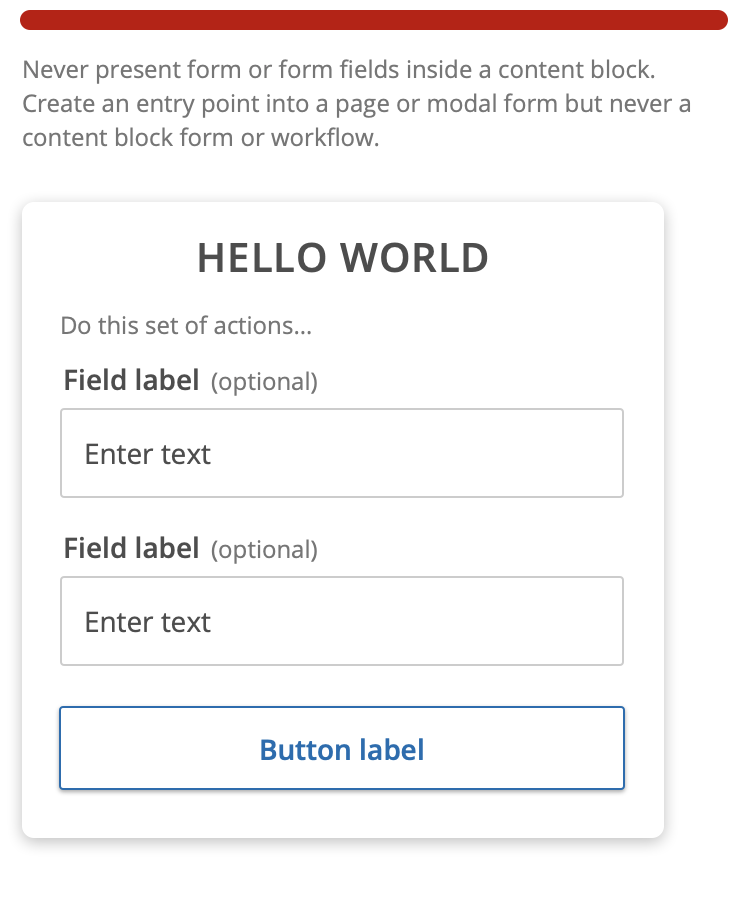
Never present a form or form fields in a content block. Alternatively, provide micro interaction controls to update example scenario data like range sliders or pre-populated data. Link out to workflows that can allow the user to submit full sets of data.
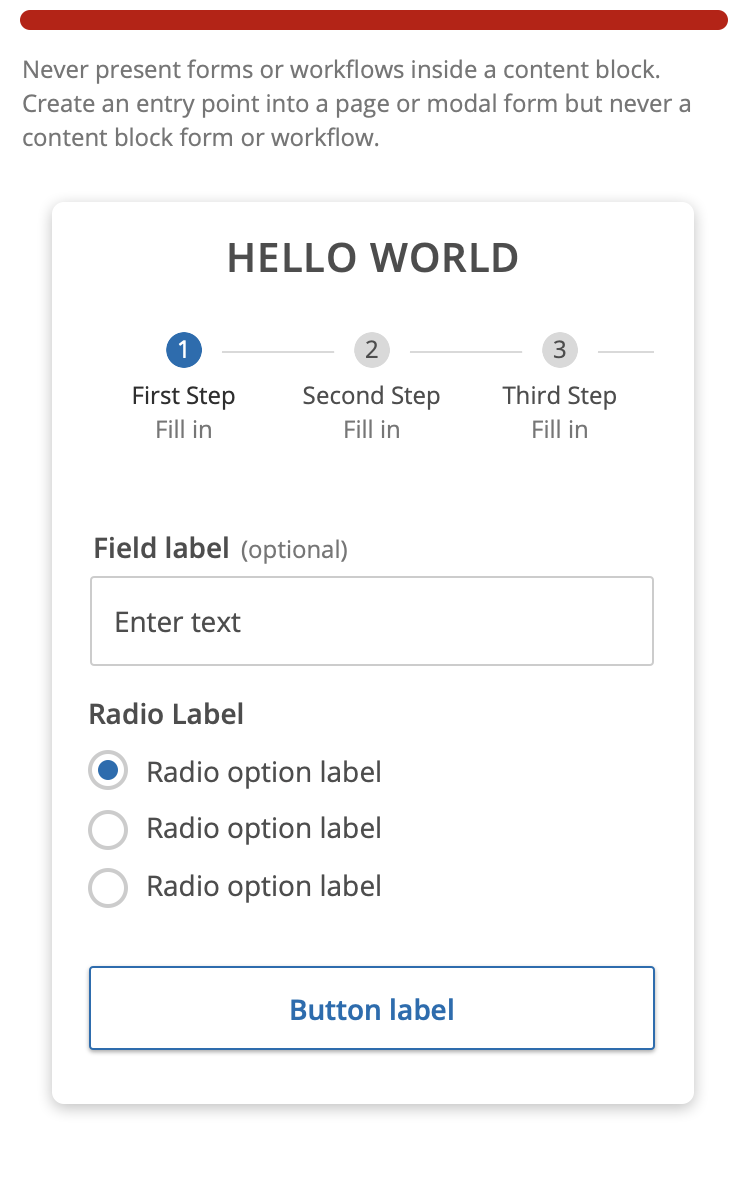
Never present a multi-step workflow within a content block. Alternatively, create an entry point or call-to-action that results in the launch of another page or overpanel that contains the workflow.
Considerations
Mobile
- Content blocks should be designed mobile first.
- Each block should be looked at through the lens of a user who just opened their device, quickly logged in to check their balance and your content block was adding to the story of important information being present beyond their account balance.
- Was it insightful? Useful? Relevant? Easy to digest? Appealing to look at?
Consistency
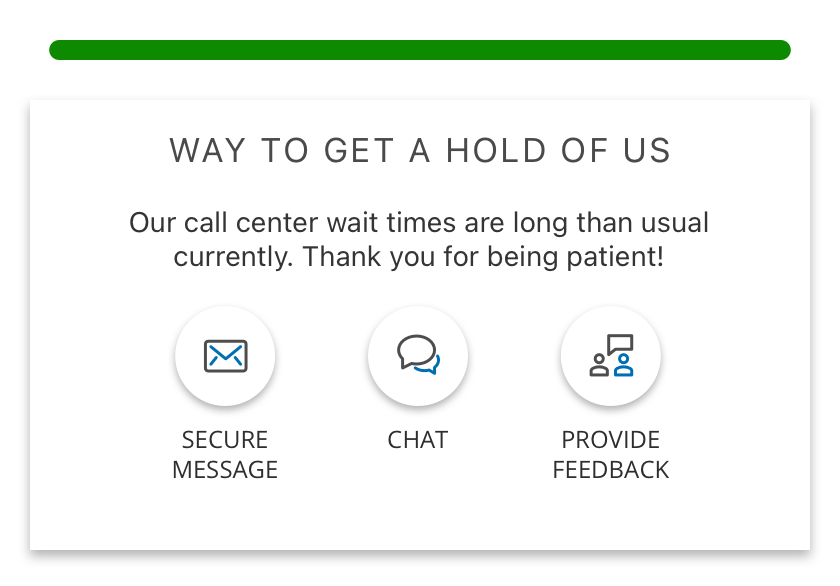
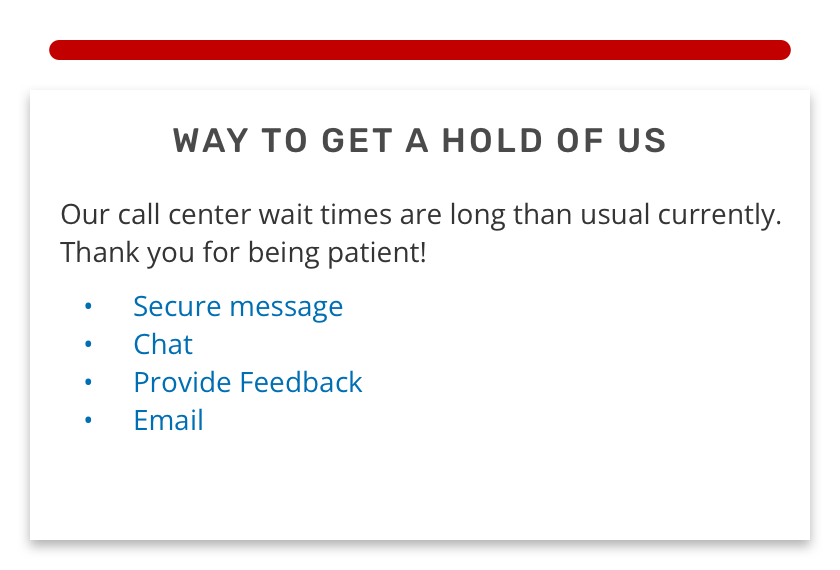
A well-balanced set of content blocks should visually work seamlessly together. Font, typography, links, buttons, and colors all should be sourced from Tecton in order to maintain visual consistency with other widgets. (see below)
Responsiveness
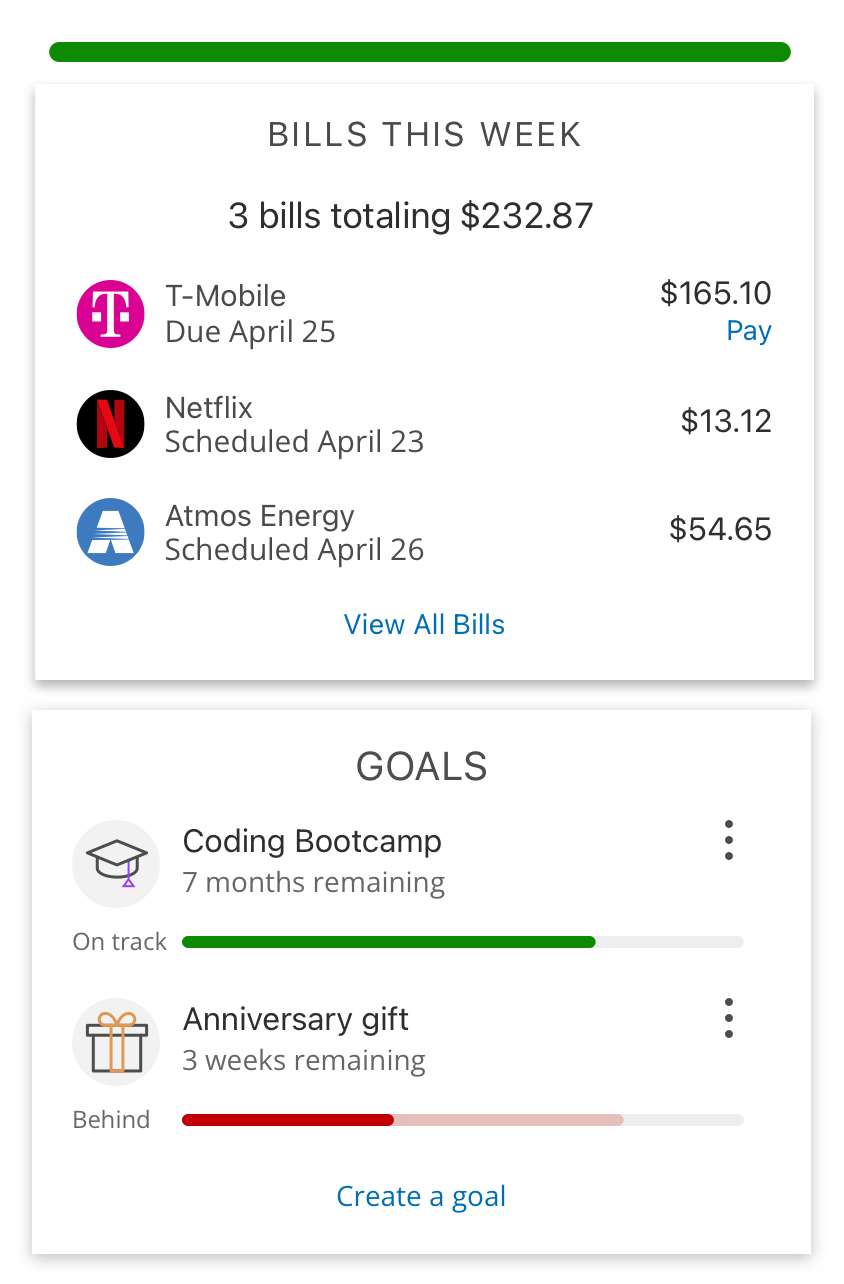
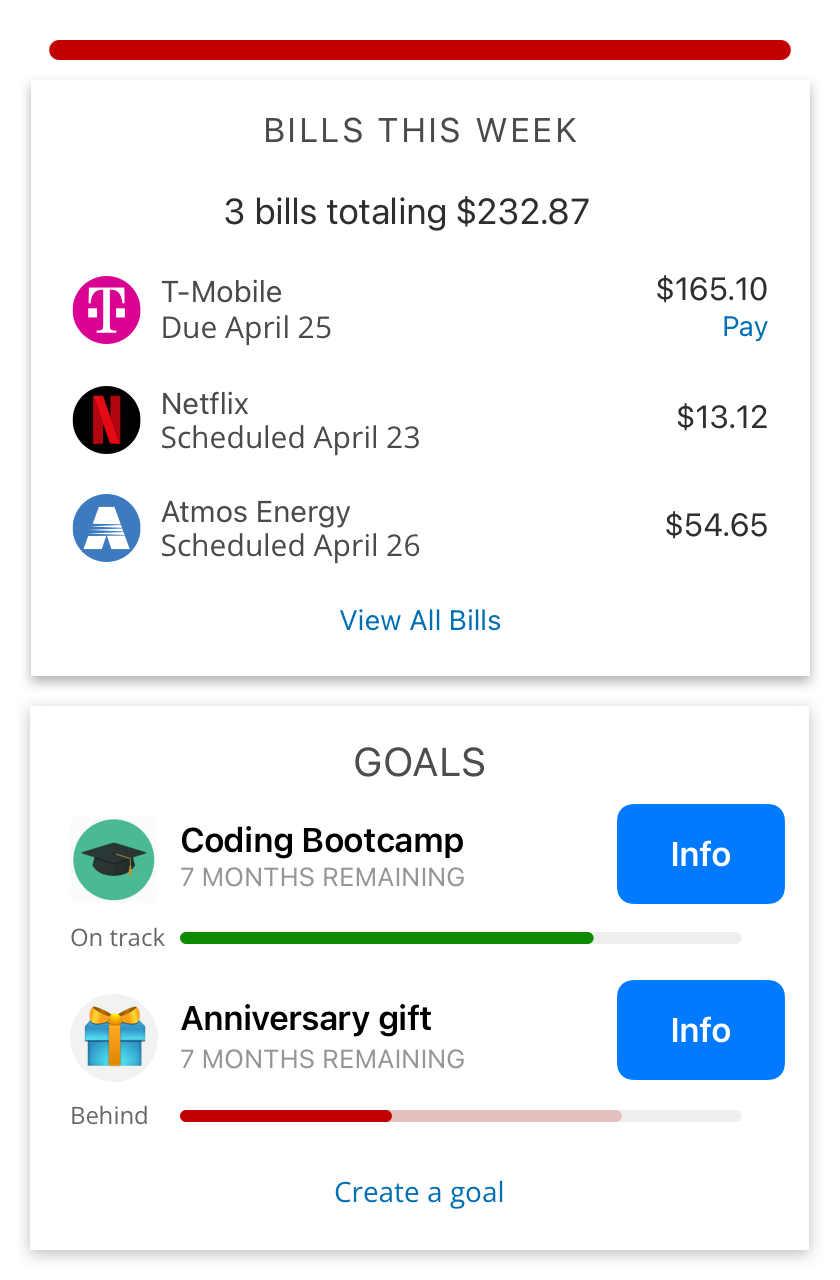
- Each block is self-contained and needs to be rendered in any position within the dashboard. FIs are given control over its position based on static positioning or trait based data.
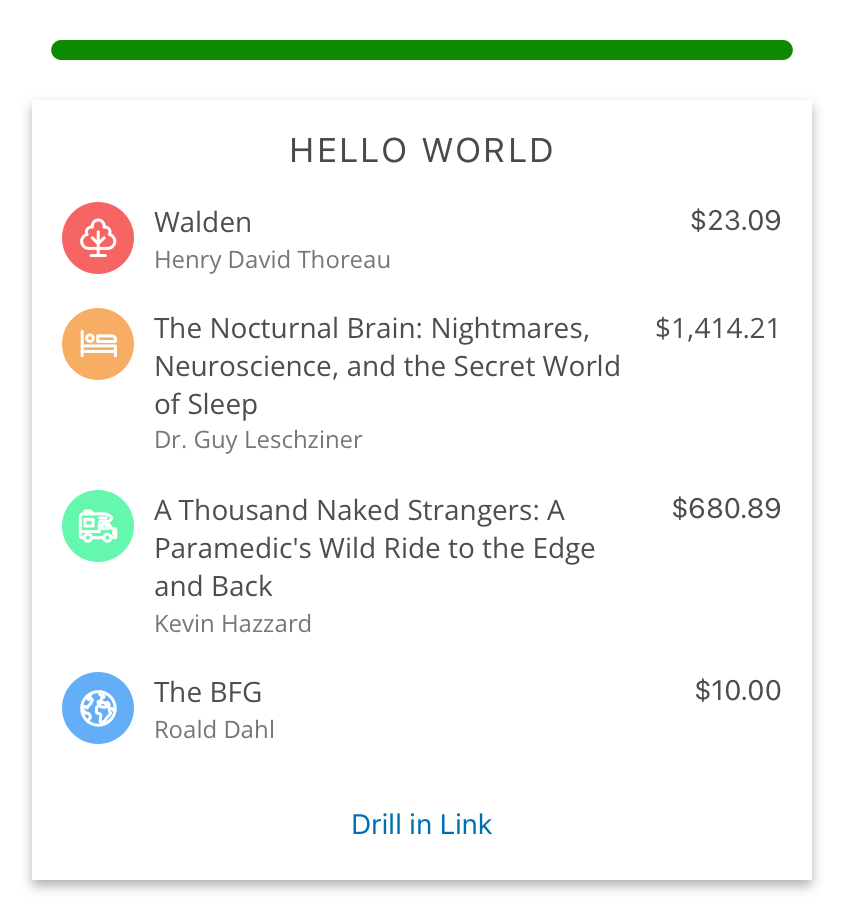
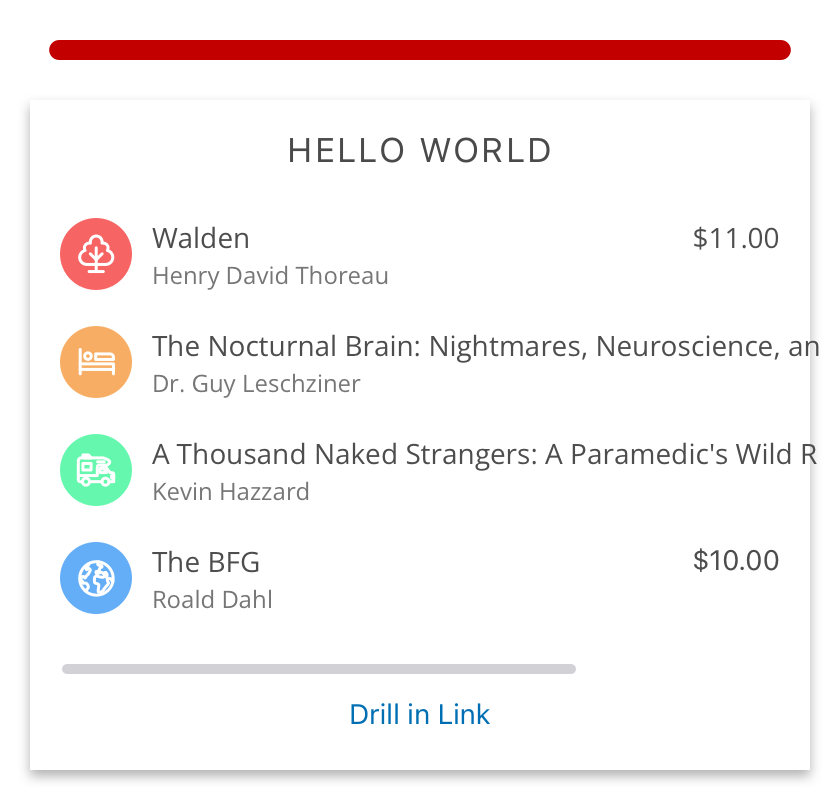
- Each block has a consistent height, and the width is defined by the grid and device size. Each state of the block needs to fit within this set height.
Statefulness
Blocks should render their own on-boarding calls to action (enrollment entry point), empty state (no data available), normal operating state (full data), error states (failed to load and return data), and loading states.
Insights
- Blocks should provide easy-to-understand details, learning, or nuggets of information that help a user stay on top of their financial journey.
- Rely on drill-in states to get the user to the place they need to go based on what they learned from your insights.
Visual Presentation
The final presentation of all content blocks, when backed by traits, should be a hierarchical presentation in order of importance of actionable information and insights. It is important for a block to not interfere with a user's session when irrelevant. If a user is reading from top to bottom, (and left to right on tablets or desktop) they should be able to review, make a decision, take action (if any is needed) and move on to the next block in order of importance.
Theming Consistency
- Q2 is delivering a first class presentational experience by allowing multiple sources of information, services, vendors and custom work to compile into one location.
- The existing and future thematic controls provided to our FIs will allow for font, color, button, input, icon, and illustration controls which will immediately impact every part of the application. Each content block must adhere to the strict use of Tecton's variables and components in order to visually align all elements on the page uniformly.
Outer Consistency
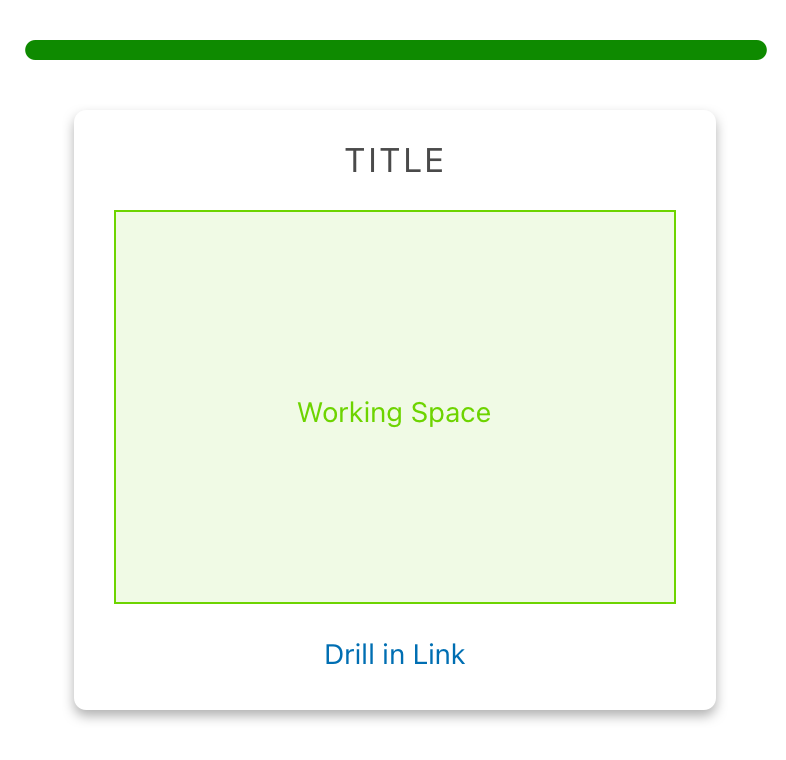
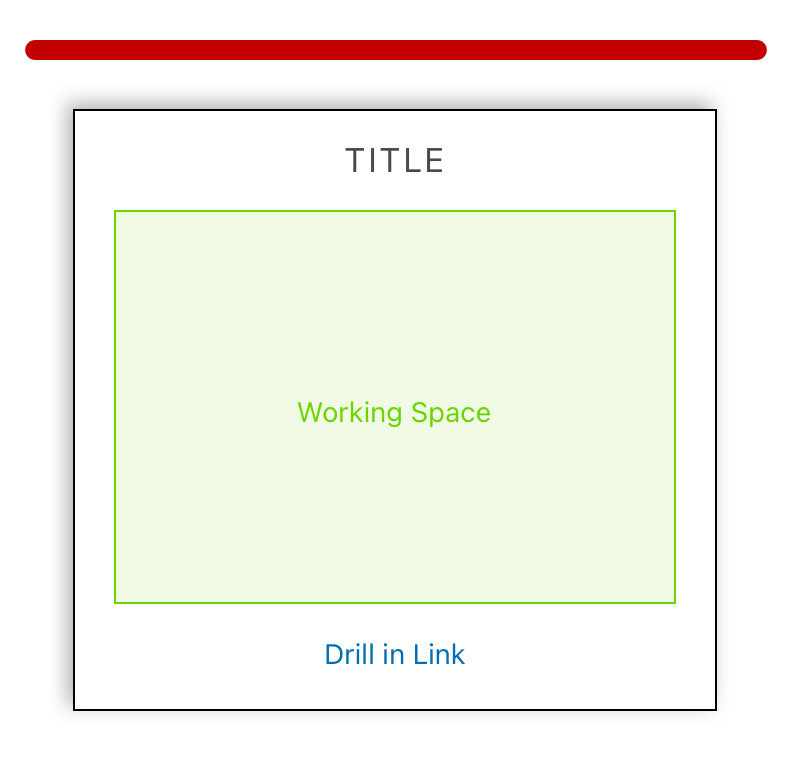
- The outer block presentation is provided by Q2 and the SDK.
- The block is complete with box-shadow, border-radius and responsive margins.
- Thematic options will be provided in the future allowing you to opt your content block into an FI primary or secondary color content block. This will likely flip or invert your color palette, making it important to utilize the Tecton color variables.
Inner Consistency
- Utilizing the Tecton color variables, buttons, icons, and data visualizations will allow your block to inherit important thematic design changes that our FIs can choose from.
- Without it, your block will not be approved or look like a bug was introduced into the system.
Data Presentation
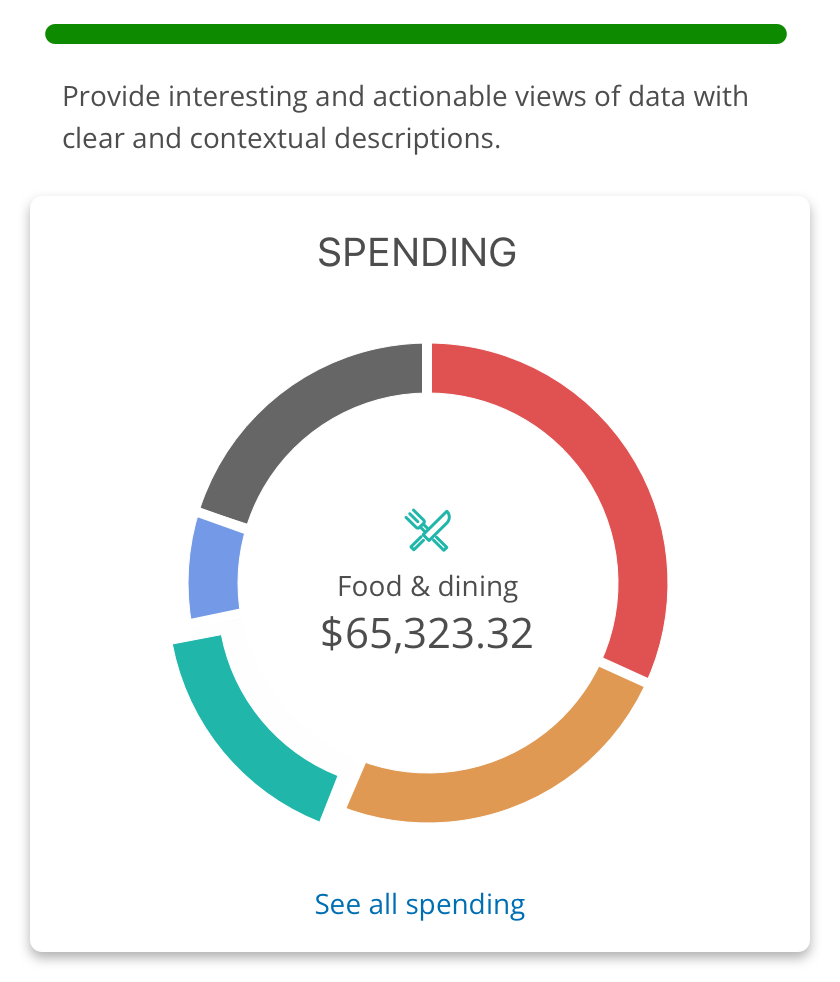
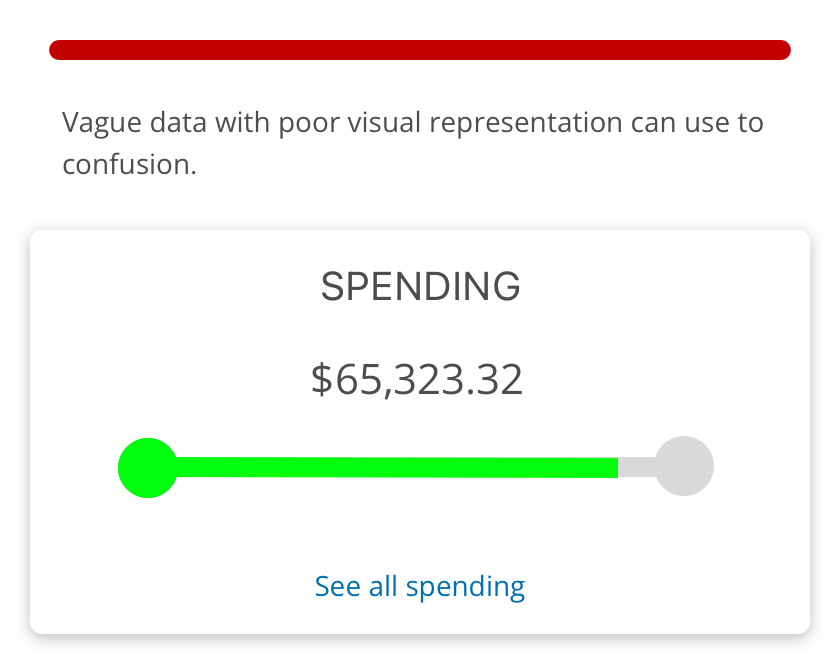
- Depending on your available data, present the most valuable presentation for it. That can be a short list, a carousel of items, or a data visualization like a donut, bar chart, or gauge. The goal is to make it quick for a user to understand what is trying to be communicated so they can make a quick decision on what their next action should be.
- Avoid overly populating your data visualization with too much data. Data density is important to maintain a clean interface and not overwhelm the user with analysis paralysis.
Color and Iconography
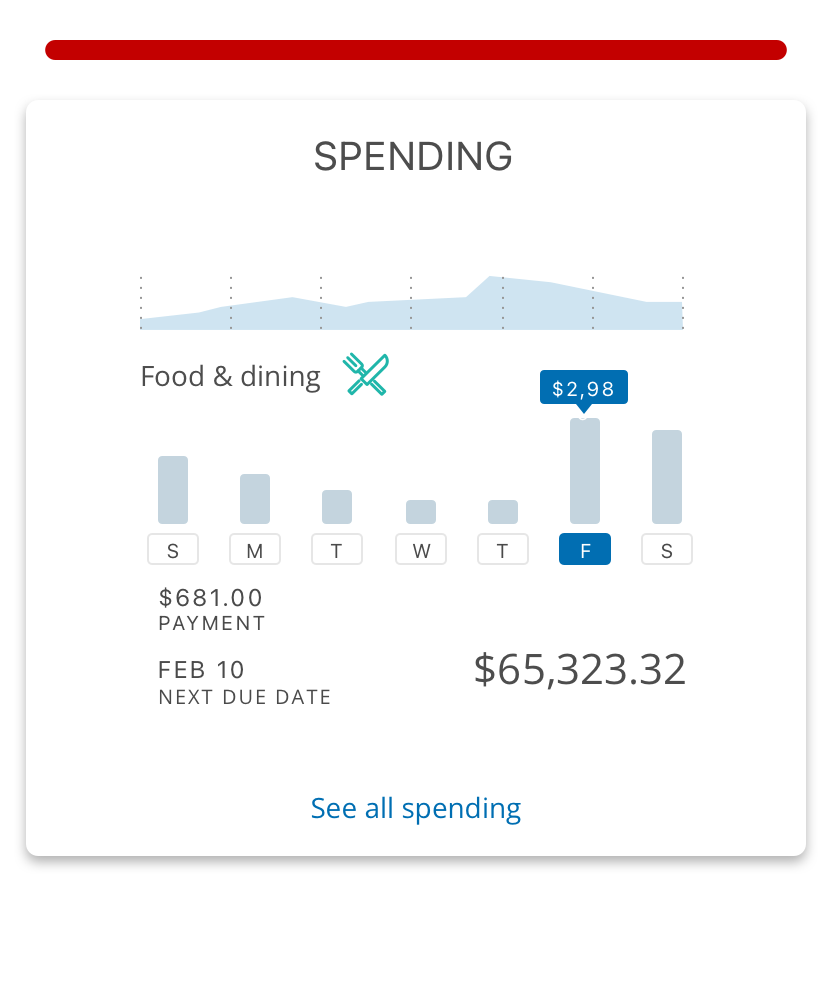
- Balance data with graphics and information highlighting.
- The use of color can draw attention to important information and reduce overly complex data sets.
- Graphics like icons and illustrations help break apart otherwise similar items for easier scalability.
Loading
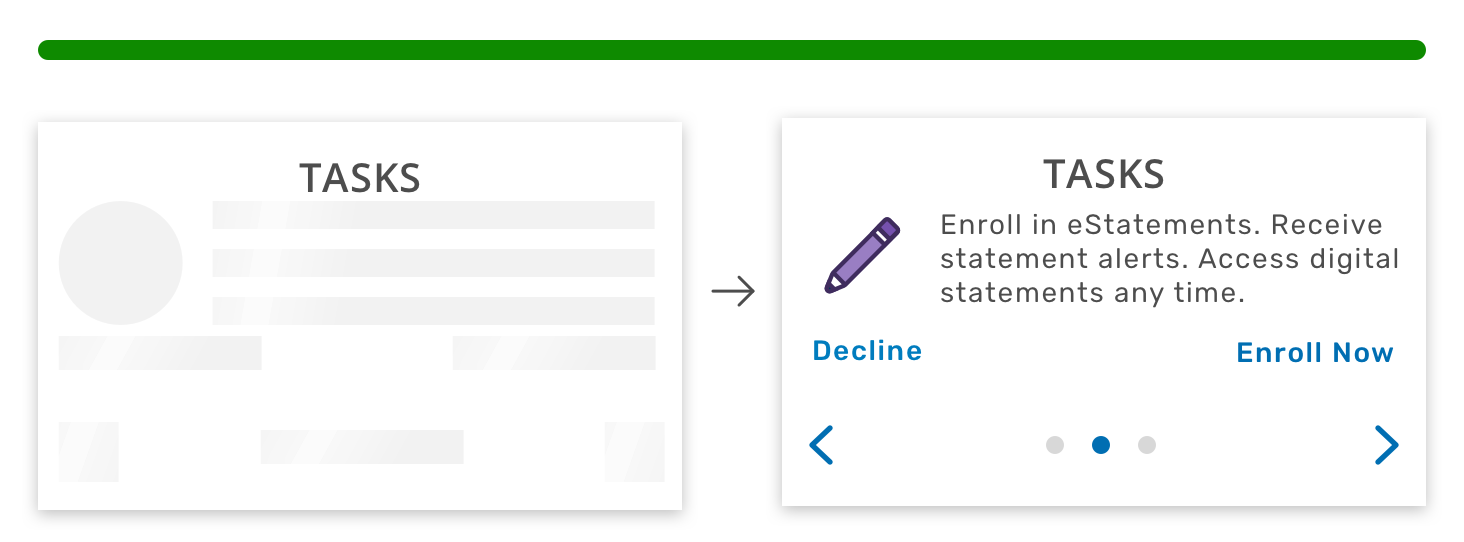
- Loading is a state and often an issue when API and data calls are expensive or running slow.
- Utilize the q2-skeleton loading component to represent your states scaffolding while waiting on the information.
Understand your Position
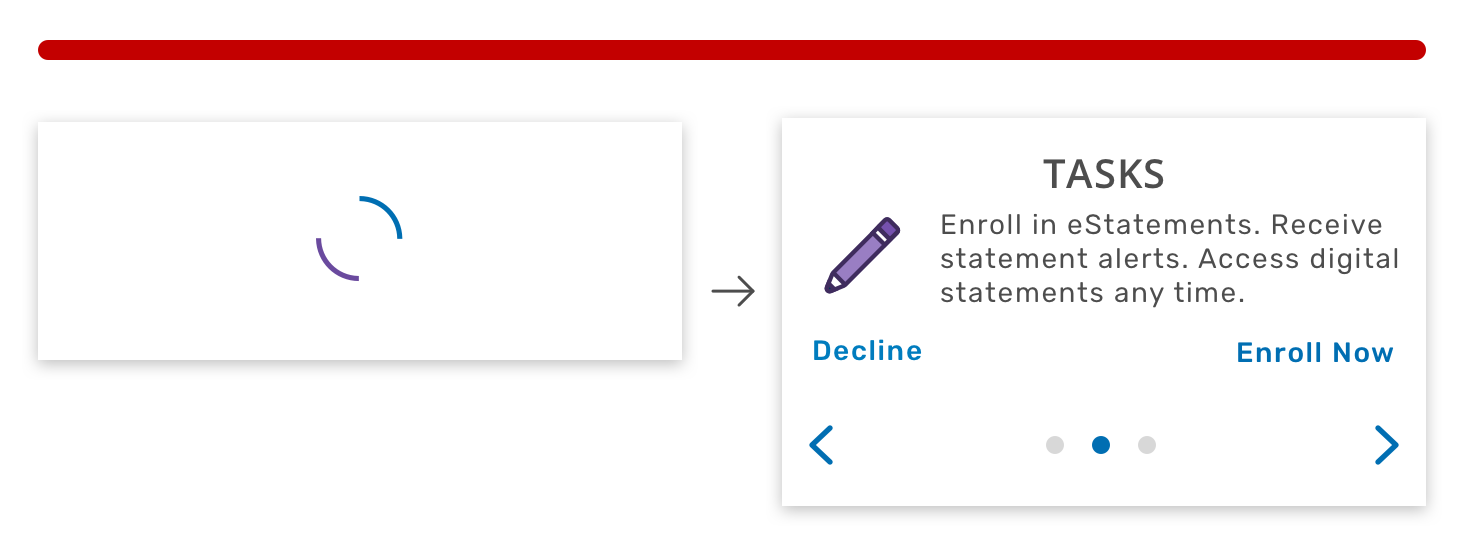
- Within an online banking environment, a dashboard can be helpful to communicate important information about the state of the user's financial life.
- Overly flashy content or inappropriately sized blocks can be frustrating and difficult to deal with.
- Avoid these bad practices and let the FI utilize the Trait-driven system to promote and rearrange your block based on the user's known needs. Help to create a quality financial environment for the FIs and their users.
Tactical Design
Extension Structure
Strongly encouraged standards:
- Establish a single Q2 SDK extension regardless of the number of content blocks. This will simplify the deployment and maintenance of the extension.
- Each content block is built as a module within that single extension.
- Minimize the number of content blocks.
- Only create more than one content block when the content of both warrants a consistent presence on the dashboard at the same time.
- If you have different information relevant to different sets of users or at different points in time, create a single content block and leverage traits to control state management. This will minimize FI configuration work and maintenance and allows your institution to influence which content is most relevant for a given user, i.e personalize the experience.
- The extension is built to support a mixture of both Legacy and Composable Dashboard content, if applicable, for a given institution. Not all users will be transitioned to the Composable Dashboard at the same time even within the same FI.
Block Structure
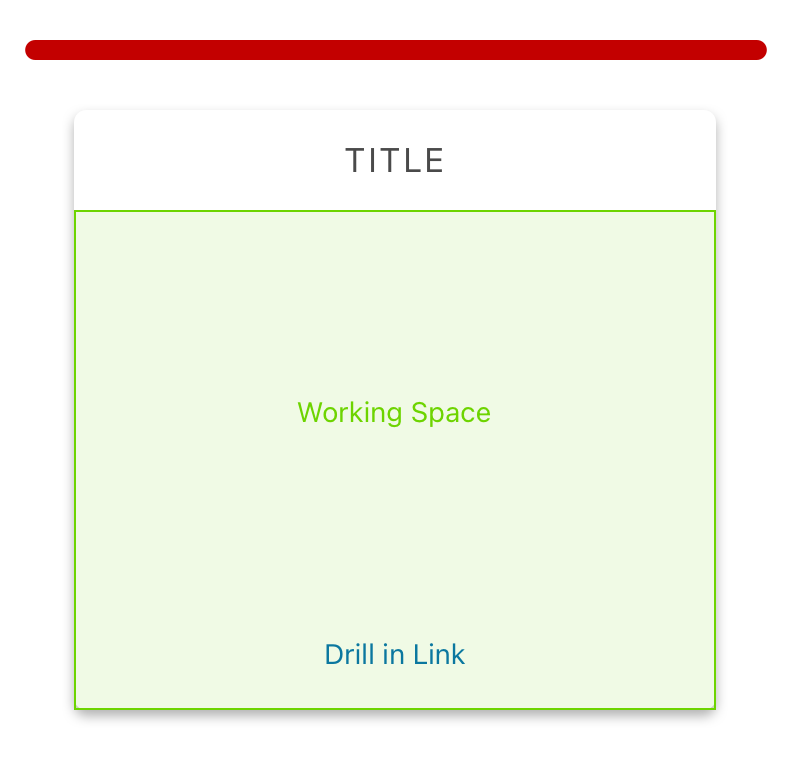
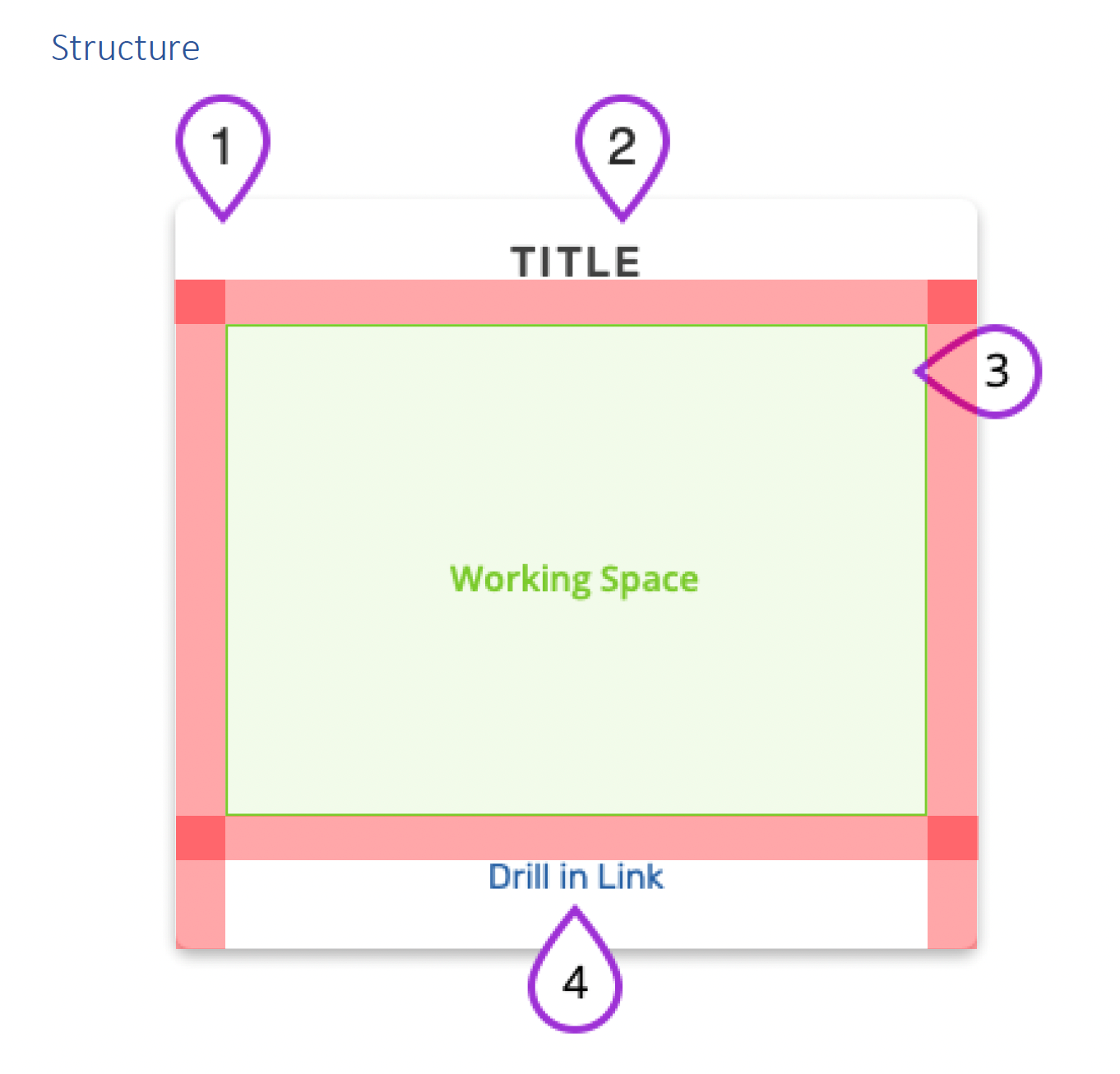
- Container
- The container holds all content block elements, the size is determined by the internal force of the working space and content area.
- Max height of the block is 590px
- Width will be responsive to the device and grid. You need to support a minimum of 300px up to 475px
- Title (Optional)
- The header of the content block.
- The title should give a concise gist to what the content block is related to.
- Visually provided by the content block, set when priced.
- Content (See content block design guidelines for more details)
- Content blocks can have multiple types of dynamic content created by internal UUX teams, or SDK content that presents itself on the dashboard.
- Action (Optional)
- Related to the content block, the action can complete something or take the user to a larger workflow or page.
- If using the standard Text Link, set when priced.
- Padding (Default setting)
- The inner padding shown in red on the image is app-scale-3x (15px) by default.
- The app-scale might become a thematic control in the future which could become as low as 9px and as high as 21px.
- Minimum working space height: 100px
- Maximum working space height: 560px
- Minimum working space width: 300px
- Maximum working space width: 445px
Block Preview Images
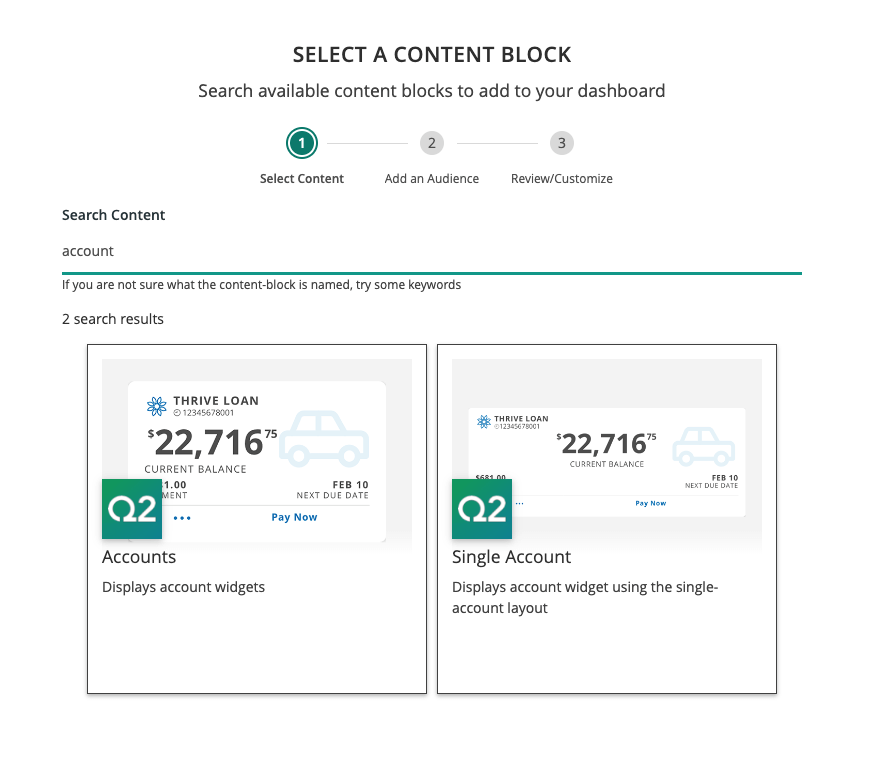
Create a folder named "dynamic_content" in the public asset location of your SDK project. Add two files for each module configured as content-block, a large preview image (600x400) and an icon image (80x80) with the module name as the base of the filename.
Images for the example config above would be named:
- Preview image: content-block.png
- Icon image: content-block-icon.png
Theme variables and components
When creating a content block within Composable Dashboard, UI alignment is key to making each content block look and feel like it was developed specifically for this FI (Financial Institution) environment and the UUX platform. Below is a limited set of variables and definitions to assist in the development of a content block on the new Composable Dashboard for Dynamic Personalization.
Do not add manipulation to any color variables provided. Additional manipulation will result in undesired output and FIs will ultimately enter bugs against the content blocks if those colors are not able to be modified in each instance. We have seen several instances of reds turning into undesired salmon colors which led to project delays due to missed expectations.
Example implementation: follow this pattern var(--t-base, #ffffff).
Note: the developers will need to provide defaults in the event a variable fails to load.
Background color
The background of the container wrapper and the body of the content block.
- Source: FI Defined
- Guidelines: Align the outer container style with the inner iFrames content display background.
- Notes: While the default is white, in certain instances, thematic content blocks will support theme options that could be set to the Financial Institution's (FIs) primary brand color. Future support for Dark Mode will leverage this setting as well.
- Variable:
--t-base
Grayscale
These are variables available to be assigned to any web component.
- Source: Q2 Defined
- Guidelines: Leverage these variables for any item not intended to be a primary call to action or thematically styled by the FI.
- Notes: In the future, grayscales may inherit some level of mixed-in hue from the FI's theme color but will maintain their saturation and lightness/brightness.
- Variable (Dark to Light):
--t-gray1--t-gray2--t-gray3--t-gray4--t-gray5--t-gray6--t-gray7--t-gray8--t-gray9--t-gray10--t-gray11--t-gray12--t-gray13--t-gray14
See our documentation on the color system for swatches and hex values of each variable.
Text color
The default text color throughout the digital banking platform.
- Source: FI Defined
- Guidelines: Leverage the primary text variable,
--t-text, as the default. The accessible text option,--t-textA, is to be used sparingly for support text as the design necessitates. - Notes: Text should only be placed on top of
--t-baseor--t-gray14. If placed on any other color, we cannot guarantee accessibility. The accessible text variable is available to ensure the system meets WCAG (Web Content Accessibility Guidelines) 2.0 minimums when the design calls for lighter text. - Variables:
--t-text--t-textA(Lightest color that maintains accessibility)
Note: set all text to one of the typography stack elements and utilize these colors unless defined by a different component's rule.
Primary Colors
The primary color selected by the FI is applied throughout the application to maintain consistency with the FI's branding.
- Source: FI Defines
--t-primary - Guidelines: Leverage the
--t-primaryunless there is a compelling design need to leverage more than one shade of the primary color. - Notes: UUX will automatically create dark/light variances which will apply throughout the system.
- Variable (Darkest to lightest):
--t-primary-d5--t-primary-d4--t-primary-d3--t-primary-d2--t-primary-d1--t-primary--t-primary-l1--t-primary-l2--t-primary-l3--t-primary-l4--t-primary-l5
Accent Colors
Accent colors are a defined set of the HSL rainbow with 3 shaded options for each Hue.
- Source: Q2 Defined
- Guidelines: These are used when it is desired to maintain the definition of a color consistently, not impacted by the FIs theme colors, while not setting HEX values that cannot be manipulated by the system. e.g., dark mode for contrast purposes.
- Notes: These colors will not change more than a slight tonal shift, maintaining their color definition during the thematic process.
- Variables:
--t-accent-1--t-accent-1-l1--t-accent-1-d1--t-accent-2--t-accent-2-l1--t-accent-2-d1--t-accent-3--t-accent-3-l1--t-accent-3-d1--t-accent-4--t-accent-4-l1--t-accent-4-d1--t-accent-5--t-accent-5-l1--t-accent-5-d1--t-accent-6--t-accent-6-l1--t-accent-6-d1--t-accent-7--t-accent-7-l1--t-accent-7-d1--t-accent-8--t-accent-8-l1--t-accent-8-d1--t-accent-9--t-accent-9-l1--t-accent-9-d1--t-accent-10--t-accent-10-l1--t-accent-10-d1--t-accent-11--t-accent-11-l1--t-accent-11-d1--t-accent-12--t-accent-12-l1--t-accent-12-d1
See our documentation on the color system for swatches and hex values of each variable.
App-scale
App-scale is provided to set consistent and measured spacing parameters throughout the design with a default base scale of 5px.
- Source: FI Defined
- Guidelines: We recommend the use of app-scale throughout the design except in instances where space change will detrimentally impact the design and rendering of content.
- Notes: The FI will have an option to change this multiplier which will change the white space across the application, impacting all content blocks to match and balance the space in a consistent manner.
- Variables:
--app-scale-0x--app-scale-1x--app-scale-2x--app-scale-3x--app-scale-4x--app-scale-5x--app-scale-6x--app-scale-7x--app-scale-8x--app-scale-9x--app-scale-10x--app-scale-11x--app-scale-12x
Components
If using the Q2 web components your content block will inherit all the appropriate variables. Leverage the attributes below if you opt to create your own components.
- Text Links
- Text links come automatically in the SDK if you use a valid A tag with an HREF.
- Do not apply additional text styling to these tags or classes.
- Icons
- An extensive list of icons is provided with Tecton. Usage of these icons whenever possible will ensure a consistent look and feel throughout the applications including stroke width and color treatment. For more information, visit our icon documentation.
- If icons are being provided by the content block and not Tecton, the below variables are utilized to style the icons and maintain consistency with the provided icon system and global theming.
- Variables
--t-icon-stroke-width--t-icon-cap--t-icon-stroke-primary--t-icon-stroke-secondary--t-icon-fill
- Call-to-action "button" styles
- See our buttons documentation for the options provided out of the box.
- When developing a content block for the dashboard, it is recommended you use one of the following: (listed in order of preference)
- The "primary link" provided within the content block structure (text link)
- A custom placed text link
- A Neutral button - outline-based and intended to reduce users' confusion and focus with primary workflow buttons. In short, we need to avoid 20 primary calls to action on a single page that will overwhelm the user.
- If the content block needs to provide its own button (NOT Recommended), use the following variables to match the style of the rest of the dashboard.
- Variables
--tct-btn-neutral-bg--tct-btn-neutral-font-color--tct-btn-neutral-font-weight--tct-btn-neutral-text-transform--tct-btn-neutral-letter-spacing--tct-btn-neutral-box-shadow--tct-btn-neutral-border-color--tct-btn-neutral-border-width--tct-btn-neutral-border-radius--tct-btn-neutral-hover-bg--tct-btn-neutral-hover-font-color--tct-btn-neutral-hover-border-color--tct-btn-neutral-hover-box-shadow--tct-btn-neutral-disabled-bg--tct-btn-neutral-disabled-font-color--tct-btn-neutral-disabled-box-shadow
- Variables
During Development
- In order to assist in the development of content blocks without them being placed, Q2 provides a development preview screen that will allow you to load and develop your content block simultaneously in full-width and in-grid display modes. You can also dial in the vertical height your content block requires.
- You may also leverage your browser for testing the content that will appear within the inner content area.
- We highly recommend testing your content with multiple themes to confirm attributes are appropriately applied for a consistent, cohesive look and feel that maintains the FI's branding choices.