Outlets Overview
- Updated:
An overview of Tecton outlet types and how they connect platforms with extensions.
Outlets are components that give extension authors a place to render their work within a platform. They generate an iframe and handle data passing between the iframe and the host platform. Adding new outlets provides new locations where extensions can be rendered.
There are four kinds of outlets:
Feature Outlet
Feature outlets take up the main content area of a page in a platform, and typically also require space in that platform's navigation. Feature outlets are the most common host for extensions. They use the <tecton-platform-outlet> element.
Widget Outlet
Widget outlets are a specialized form of feature outlet used for rendering extensions in widget locations across the platform (e.g., dashboard widgets, account detail widgets). Widget configuration is managed through the platform's theme files and admin tools.
For more information on developing widgets, see the Widget Development Guide in the SDK documentation.
Tab Outlet
Tab outlets render extensions as tabs within a tabbed interface. Multiple extensions can each contribute a tab to the same outlet. They use the <tecton-tabbed-outlet> element.
Tab outlets support context filtering, allowing tabs to appear only for specific account or transaction types. For example, a tab can be configured to appear only on Checking account detail pages.
For a detailed guide on implementing and configuring tab outlets, see Tab Outlets.
Contextual Menu Outlet
Contextual menu outlets render extension-provided actions as items in a dropdown menu. They use the <q2-dropdown> element with outlet-aware properties (context, contextValue, resolvedType, additionalContext) that allow menu items to be dynamically resolved based on the current context.
For a detailed guide on implementing contextual menu outlets, see Contextual Menu Outlets.
Configuring Extensions into Outlets
Extension developers configure their extensions into outlets using the Tecton CLI (q2 tecton). From the CLI, select Outlet Configurations to see the available outlet types:
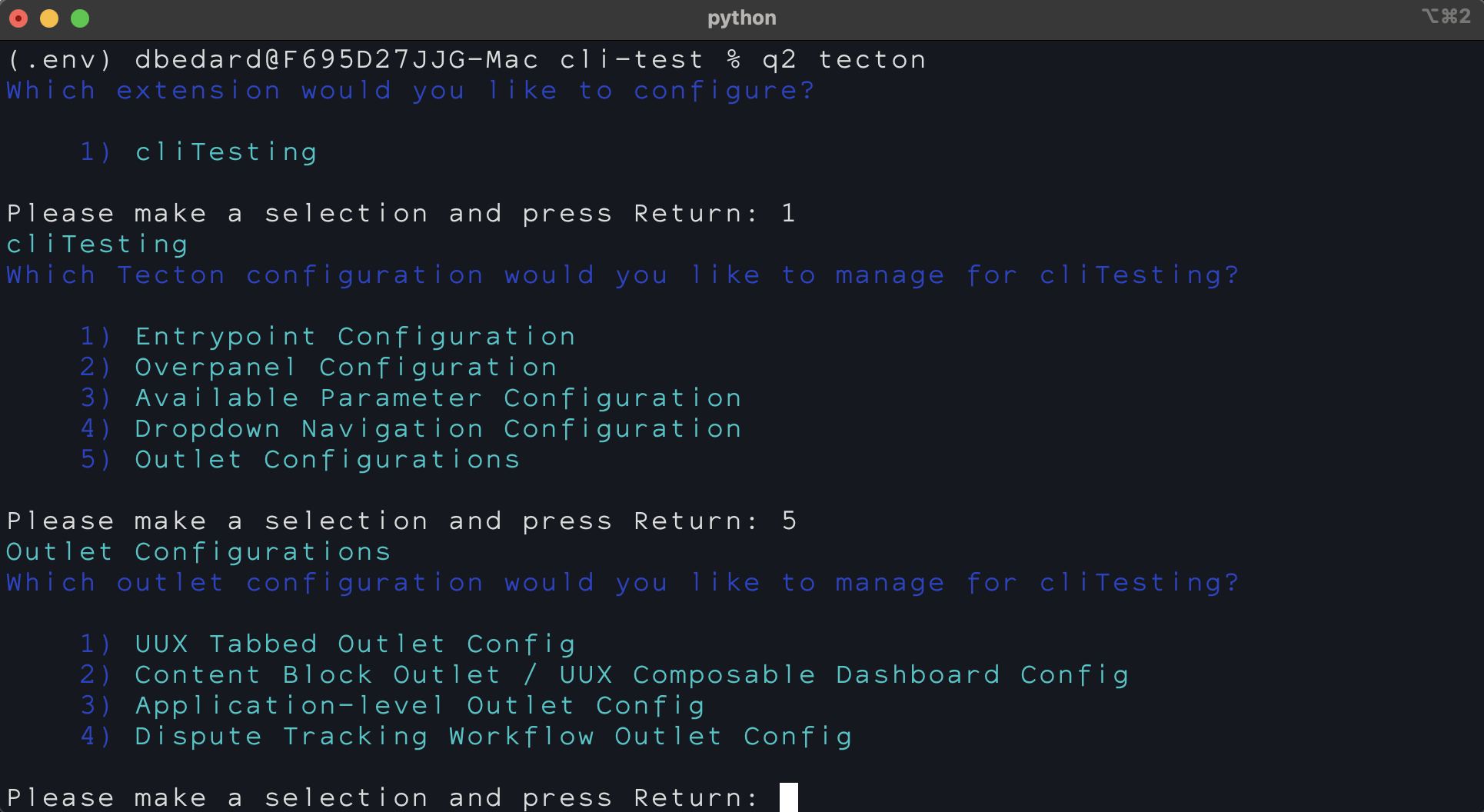
The four outlet configuration options are:
- UUX Tabbed Outlet Config — Configure your extension to appear as a tab in Account Details, Transaction Details, Activity Center, or Manage Accounts pages.
- Content Block Outlet / UUX Composable Dashboard Config — Configure your extension as a content block for the Composable Dashboard, manageable by financial institutions via admin tools.
- Application-level Outlet Config — Configure your extension to load in a non-visible application-level outlet for background logic (e.g., alerts, modals, registration checks).
- Dispute Tracking Workflow Outlet Config — Register your extension as a Dispute Tracking System workflow module.
For step-by-step CLI walkthroughs, see:
- Tecton Configuration Guide (tabbed outlets)
- Application-Level Outlets
- Dynamic Content / Composable Dashboard
Context Filtering
Outlets can filter which extensions appear based on the current context (e.g., account type, transaction type). This allows extensions to be shown only when relevant — for example, showing a rewards tab only for credit card accounts.
For details on configuring context filters, see UUX Content Controls.
Nesting Outlets
Outlets can be nested inside extensions. This means an extension rendered in one outlet can itself contain outlet elements, allowing for deeper composition of micro-frontends.
Identifying Outlets for Theme CSS
All three outlet types accept an outlet-selector attribute that flows through to the extension iframe as a data-outlet-selector attribute on the body. This lets platform theme CSS target extensions by outlet context using a standard attribute selector. See Outlet Selectors for the full pipeline and CSS examples.